Documentation
Setup notes and basic workflows for the Loom + Eden Bundle.
Loom and Eden are Max for Live MIDI sequencing devices for Ableton Live. Use them to turn chord input into rhythmic patterns, polyrhythmic movement, and evolving MIDI parts.
They work with pianos, synths, strings, mallets, pads, drum racks, and external MIDI instruments.
Requirements
Before installing the bundle, make sure you have:
- Ableton Live 11 or higher
- Max for Live
- A software instrument, hardware instrument, drum rack, or other MIDI destination for the generated notes
- A way to send notes into the device, such as a MIDI controller, MIDI clip, or computer keyboard input
Max for Live is included with Ableton Live Suite. Ableton Live Standard users need a separate Max for Live license from Ableton.
Installation
This video shows the basic installation flow for the bundle.
The video shows an older purchase flow that mentions Gumroad. Current purchases use Lemon Squeezy, but the Ableton installation steps are the same: download the files, install or place the Max for Live devices, then load them in Ableton Live.
- Download the bundle files from your Lemon Squeezy purchase receipt.
- If the bundle is supplied as an Ableton Pack (
.alp), open it and choose an install location when Live asks where to unpack it. - If the devices are supplied as Max for Live device files (
.amxd), place them in the Ableton User Library or another folder used for Max for Live devices. - Add the install folder to Ableton's Places section for easier access.
- Confirm that Loom, Eden, Hush, presets, and demo material are visible in the installed folder.
Basic Setup
Loom and Eden sit before an instrument in the device chain.
- Create a MIDI track.
- Place Loom or Eden on the track.
- Place an instrument after it.
- Arm the track or enable monitoring.
- Play or hold a chord.
- Adjust the pattern and timing controls.
If there is no instrument after Loom or Eden, no sound will be heard.
Loom Controls
Loom is for clearer rhythmic placement. Use it when the part should stay aligned to Live's tempo and repeat in a controlled way.
Each held note can become an independent voice. Each voice has its own pattern, with controls for rhythm, velocity, duration, and octave movement.
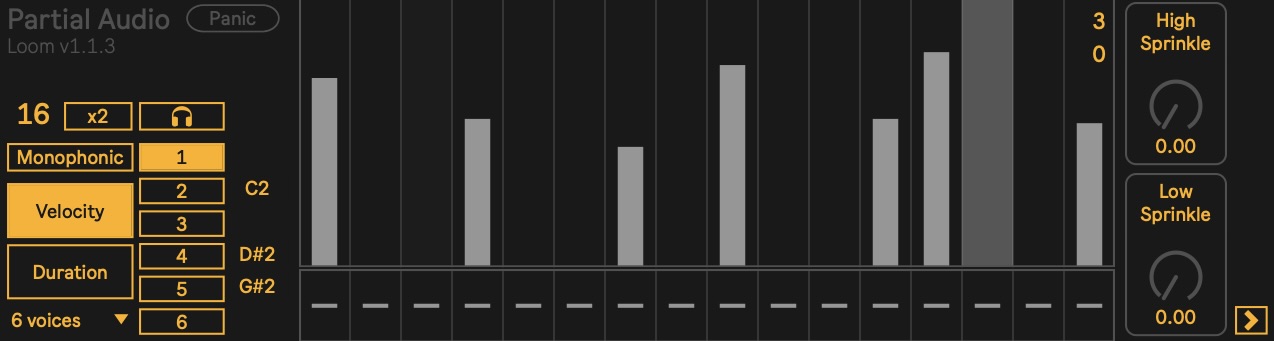
Use Loom for:
- Rhythmic piano figures
- Synth patterns that follow a chord progression
- Repeating melodic movement
- Bass lines in monophonic mode
- Live performance parts held with the sustain pedal
Core areas:
- Voices set how many notes can become independent parts.
- Voice rows select the voice you are editing.
- Pattern steps shape the rhythm or value of each step.
- Gate lane turns individual steps on or off.
- Step count sets the pattern length for the selected voice.
- Velocity mode edits accents and dynamics.
- Duration mode edits note length per step.
- Monophonic restricts output to one active voice.
- Shuffle, Randomize, and Clear All help reshape or reset the current pattern.
- Audition previews the selected output while editing.
For dense chords, reduce the voice count or simplify the gate pattern before adding octave movement.
Eden Controls
Eden is for parts that unfold over time. Use it when you want polyrhythmic movement, overlapping cycles, and subtle variation.
Voices can move at different rates, so simple chord input can become a pattern that shifts and recombines over time.
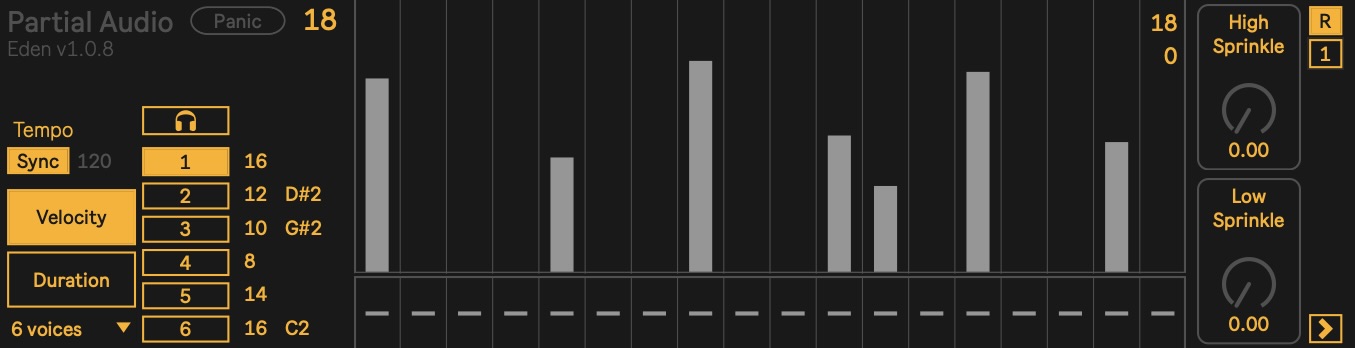
Use Eden for:
- Ambient textures
- Cascading piano or mallet patterns
- Scoring beds
- Slow harmonic movement
- Subtle variation under a regular production
Core areas:
- Tempo / Sync runs Eden in sync with Live or at its own BPM.
- Voice rates set independent timing values for individual voices.
- Repeat / ratio controls adjust how each voice cycles.
- Pattern controls shape rhythm, velocity, duration, and octave movement.
- Gate lane and step count decide which steps play and how long each voice pattern is.
Small timing differences are often enough to create movement. If the output gets too dense, reduce active voices, shorten note length, or use Hush before Eden.
Shared Settings
Loom and Eden share a set of performance and shaping controls. These settings change how incoming notes are assigned, how patterns are articulated, and how much variation is added.
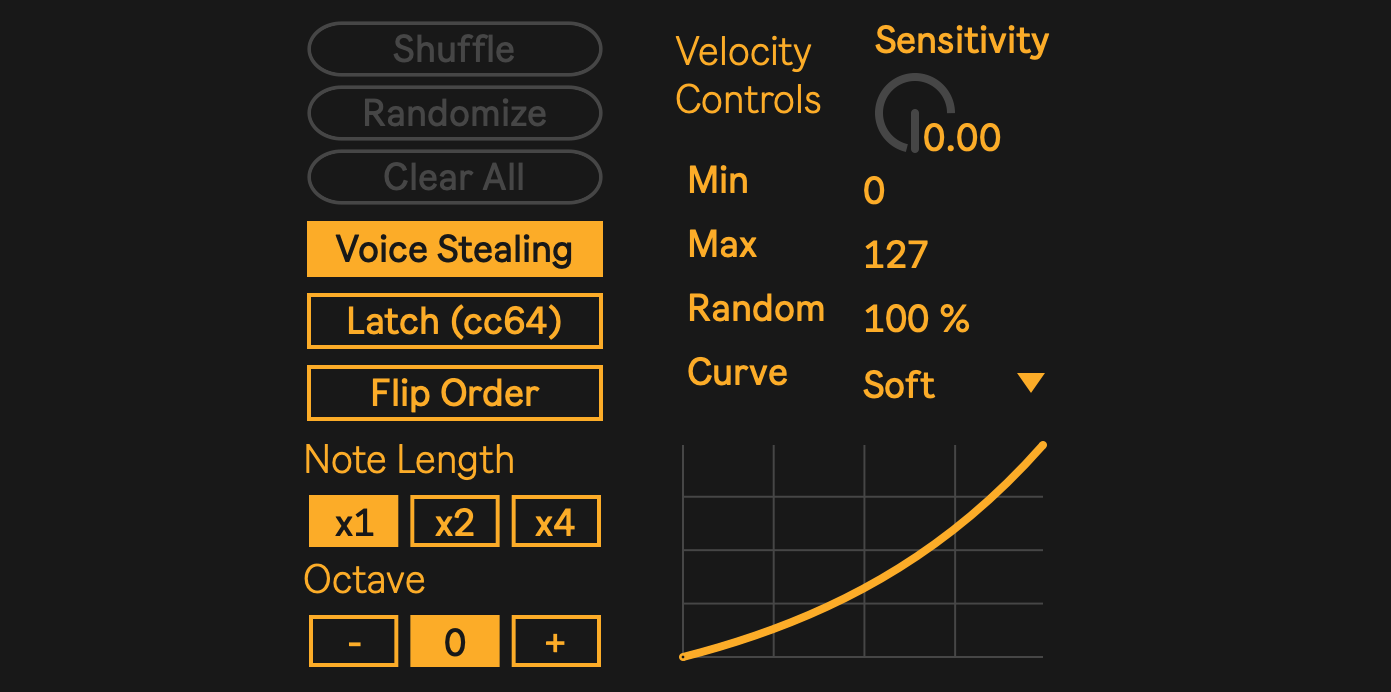
Common controls:
- Velocity / Duration modes choose whether the pattern editor changes step velocity or step length.
- Gate lane / step count control which steps play and how many steps are in the selected voice pattern.
- High Sprinkle / Low Sprinkle occasionally shift notes into a higher or lower register.
- Voice Stealing controls how incoming notes are assigned when more notes are played than there are available voices.
- Latch / sustain pedal hold lets the pattern continue while notes are held by the sustain pedal.
- Flip Order reverses voice assignment order, useful when running two related instances in parallel.
- Note Length multiplies output note length.
- Octave shifts output up or down by octave.
- Min / Max velocity sets the output velocity range.
- Random velocity adds variation within the selected range.
- Curve / Sensitivity shape how input velocity affects generated notes.
- Panic stops hanging notes.
Start with moderate settings. Add variation only after the rhythm and voice count feel stable.
Hush
Hush is a MIDI utility included with the bundle. Place it before Loom or Eden when the incoming chord is too dense.
Hush thins MIDI input before it reaches the sequencer. This can keep large chords from producing too many simultaneous lines, especially with Eden.
Typical chain:
- Hush
- Loom or Eden
- Instrument
Use less thinning for sparse parts and more thinning for wide chords, pads, or scoring textures.
Example Workflow: Ghost Pianos
The Ghost Pianos setup uses Loom to create two related piano parts from the same chord input.
Basic setup:
- Create a MIDI track with a piano instrument.
- Place Loom before the piano.
- Group Loom and the piano into an Instrument Rack.
- Duplicate the chain.
- Pan one chain left and the other right.
- Enable Flip Order on one Loom instance.
- Play or hold a chord.
The two sides stay harmonically related, but the reversed voice order creates different movement on each side.
This works best with velocity-sensitive piano sounds, mallets, plucks, or soft synth patches.
Troubleshooting
I hear no sound
Place an instrument after Loom or Eden in the device chain. The devices generate MIDI, so the sound comes from the instrument that follows them.
The device does nothing
Check that MIDI is reaching the track. Confirm that the track is armed, monitoring is enabled, or a MIDI clip is playing into the device.
I cannot find the devices
Check the folder chosen during installation. If needed, add that folder to Ableton's Places section, then browse to the installed devices from Live's browser.
Notes keep hanging
Use the Panic control to stop hanging notes. If it happens repeatedly, check sustain pedal or latch behavior and confirm that no external MIDI device is holding notes.
The output is too busy
Reduce the number of active voices, simplify the gate pattern, shorten note length, or place Hush before the sequencer.
Do I need Max for Live?
Yes. The current versions are Max for Live devices.
Can I use these outside Ableton?
Not yet. VST3/AU versions are in development.
Support
For product support, purchase questions, or custom development enquiries, use the contact page.